Before you start
You need three things. Ten minutes is plenty.
- An agency workspace in Proofsource. LinkedIn sending lives in agency mode only.
- A HeyReach account with at least one LinkedIn sender signed in. HeyReach is the tool that sends on LinkedIn for you, from your own profile.
- Credits for the AI-written LinkedIn lines, up to 2 per pitch. Not enough? You can type the lines yourself and send anyway.
Email keeps working without any of this. LinkedIn is a second channel you add, never a replacement.
Step 1: Connect HeyReach (once)
- In HeyReach, open Settings, then Integrations, and copy your API key.
- In Proofsource, open Integrations from the left menu. Type LinkedIn in the search box, or scroll to the LinkedIn outreach group, and find the HeyReach row.
- Press Connect on that row, paste the key into API key and save.
- The row now says Connected, and its panel lists your LinkedIn senders: who is signed in, and who can send InMail (Sales Navigator). They show up in LinkedIn from on every pitch. You never do this again.
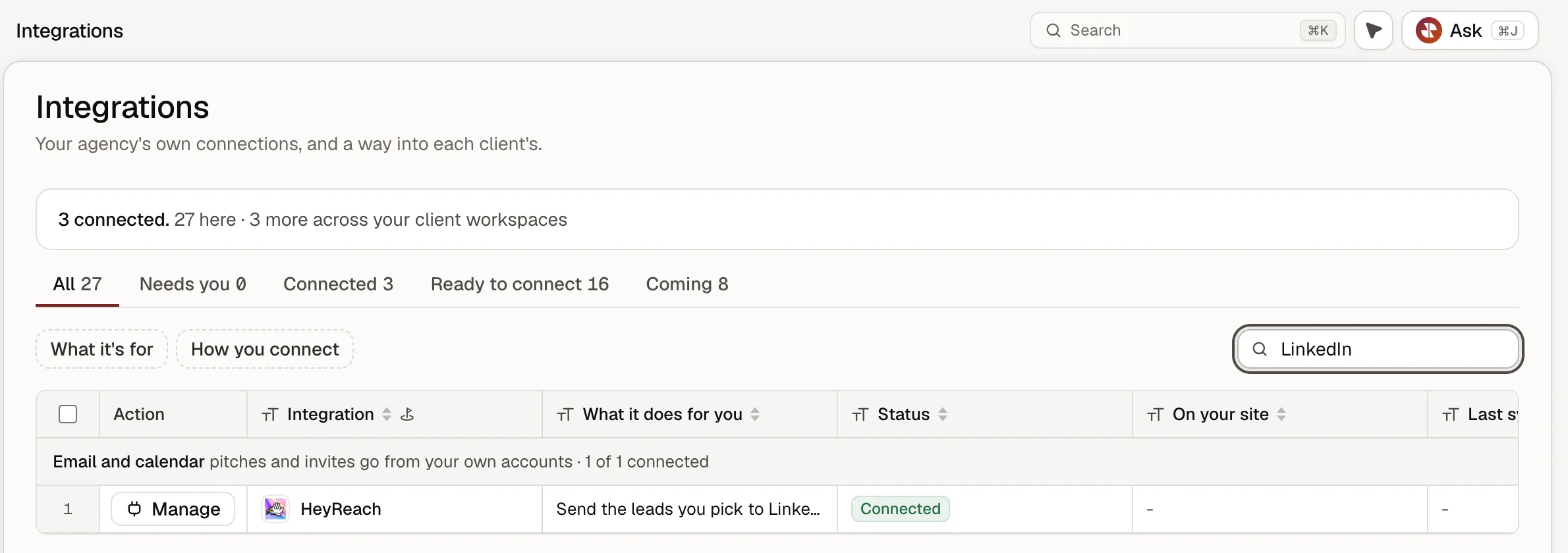
Already writing a pitch? The composer shows Connect HeyReach right where you are, so you can paste the key without leaving the pitch. To change the key or disconnect later, press Manage on the same row.
Step 2: Pick Send by on a pitch
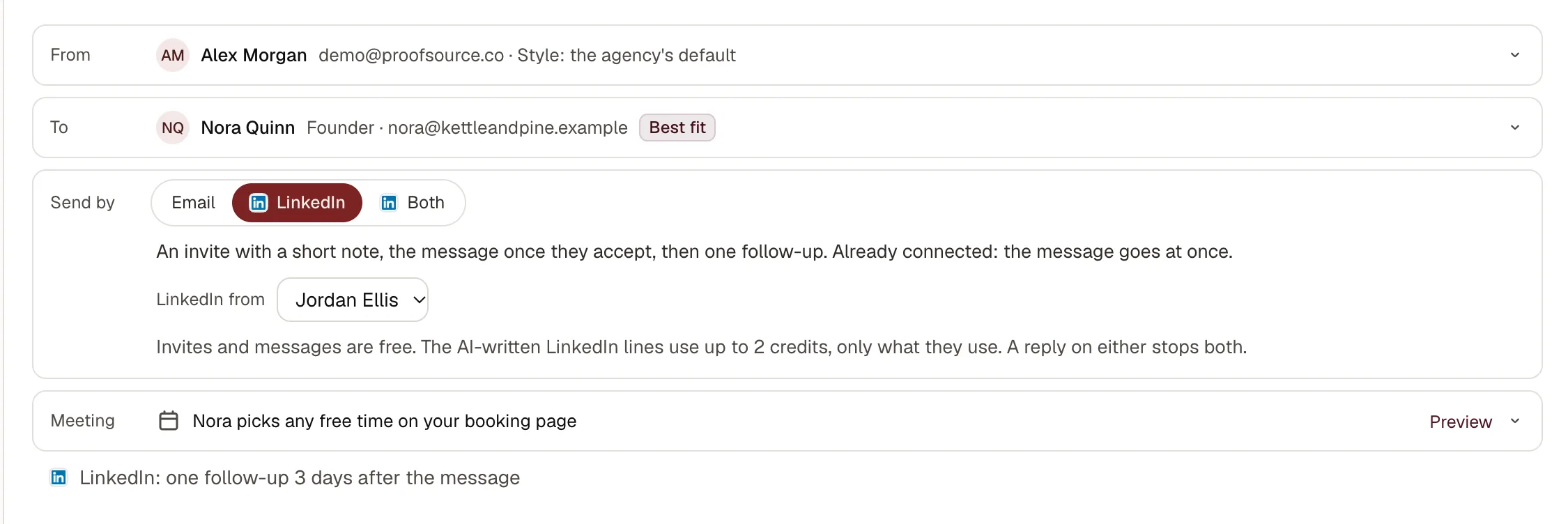
- Start a new pitch the way you always do. Under From and To, find the Send by row.
- Pick Email, LinkedIn or Both.
- Pick LinkedIn from: the sender it goes out as, if you have more than one.
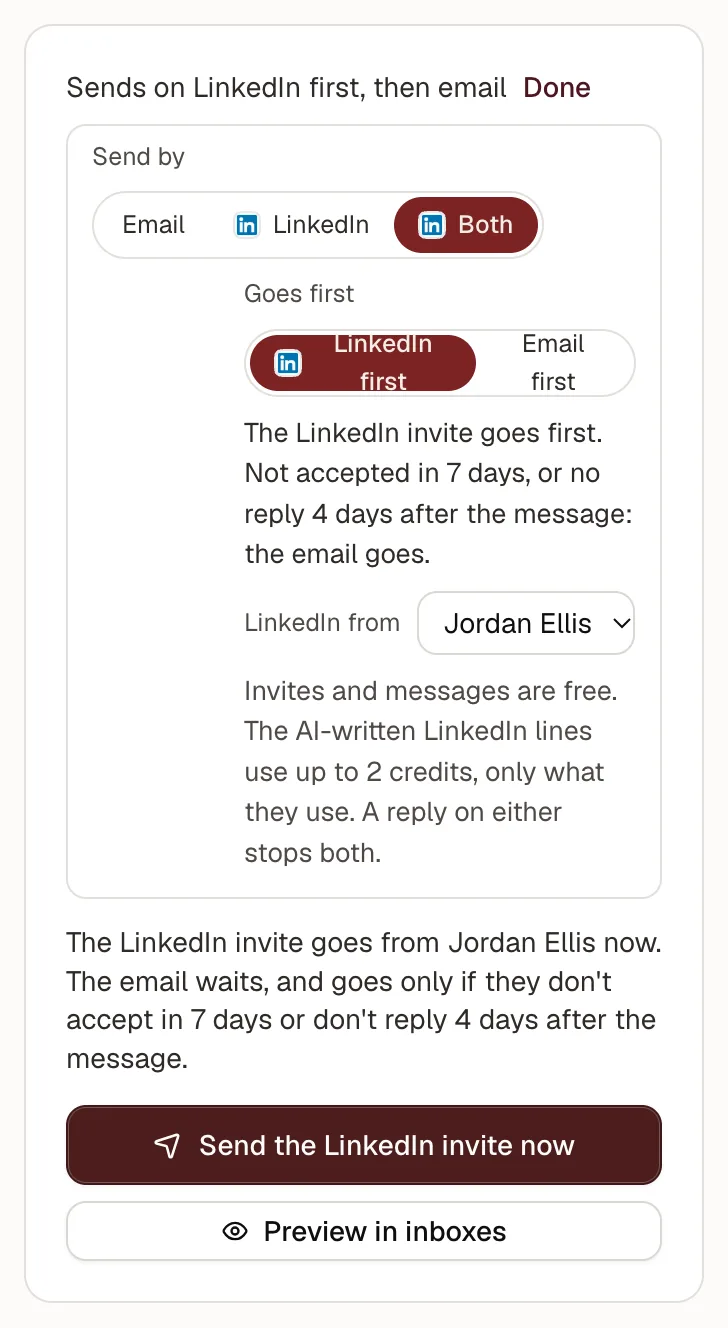
- With Both, pick Goes first: LinkedIn first or Email first.


Already on Review and send? Press Change next to how it sends, pick again and press Done. The choice is kept on the pitch at once.
| Send by | What goes, in order |
|---|---|
| The email goes as it does today. Nothing on LinkedIn. | |
| An invite with a short note, the message once they accept, then one follow-up. Already connected: the message goes at once. | |
| Both, LinkedIn first | The LinkedIn invite goes first. Not accepted in 7 days, or no reply 4 days after the message: the email goes. |
| Both, Email first | The email goes first. No reply in 4 days, or it bounces: the LinkedIn invite goes. |

Step 3: Read and edit the LinkedIn lines
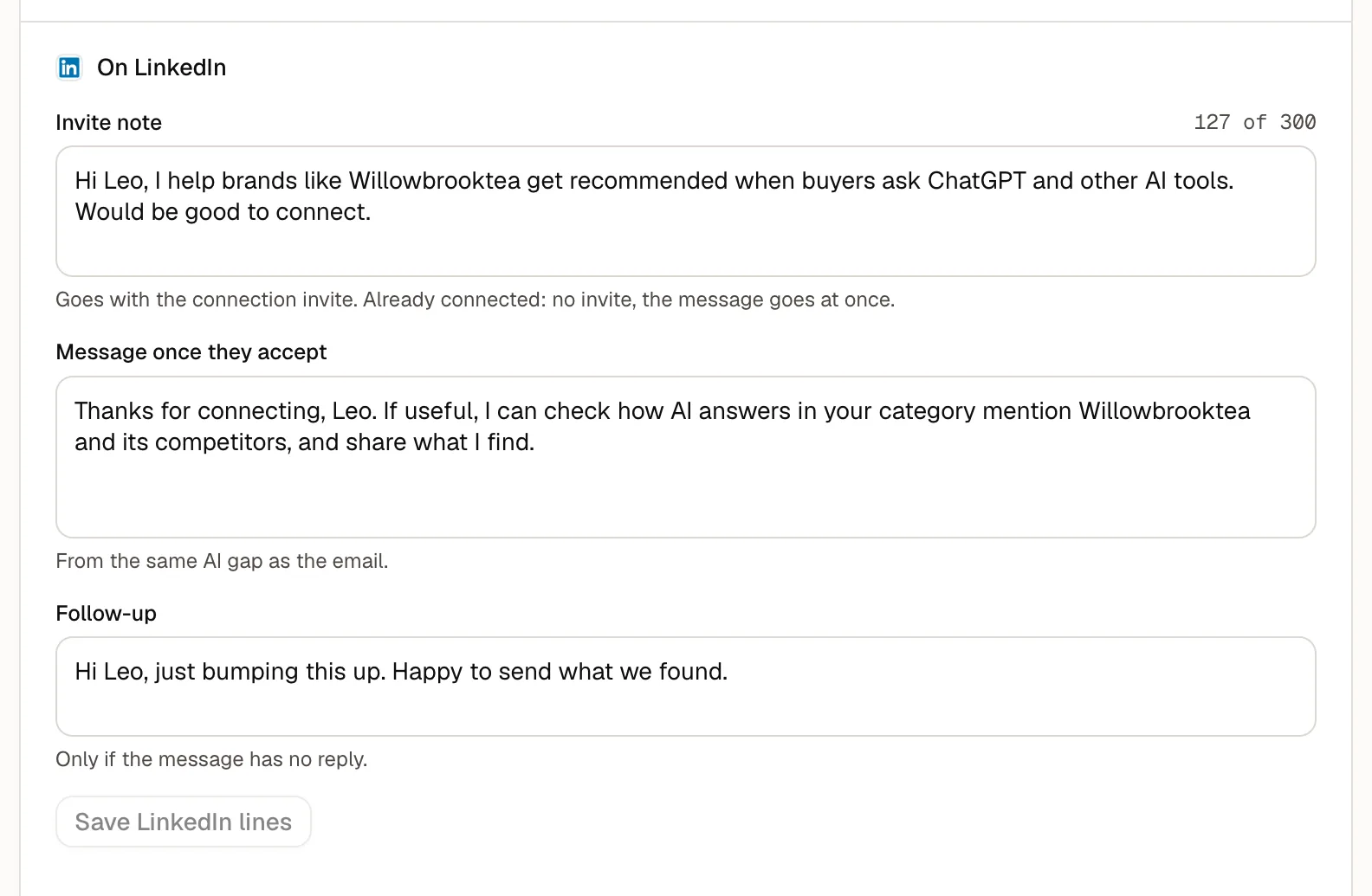
Proofsource writes three short LinkedIn lines from the same AI-visibility gap as the email, so the prospect hears one story on both channels.
| Line | When it goes | Limit |
|---|---|---|
| Invite note | With the connection invite. Already connected: no invite, the message goes at once. | LinkedIn's 300 characters |
| Message once they accept | The moment they accept your invite. | None |
| Follow-up | 3 days after the message, only if there is no reply. | None |
- Read each line under On LinkedIn. Change any word you like.
- Keep the invite note under 300 characters. The counter shows how many you have used.
- Press Save LinkedIn lines.
Invites and messages are free. Only the AI-written lines use credits, up to 2, and only what they use. If your balance is short, write the lines yourself: nothing is charged and the pitch still sends.
If the person has no LinkedIn profile on file
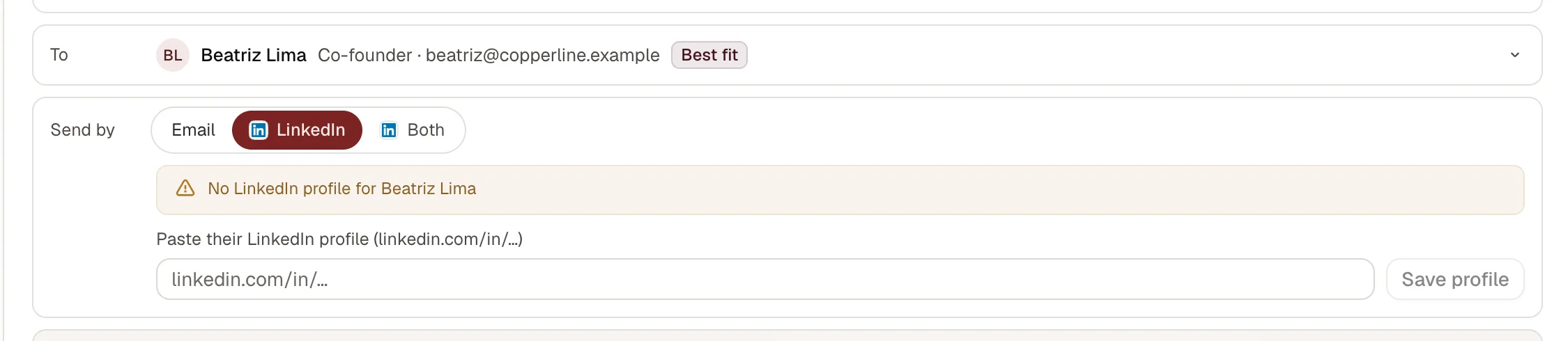
Some leads come with an email but no LinkedIn link. The composer says so and gives you a box for it.
- Find their profile on LinkedIn and copy the address. It looks like linkedin.com/in/their-name.
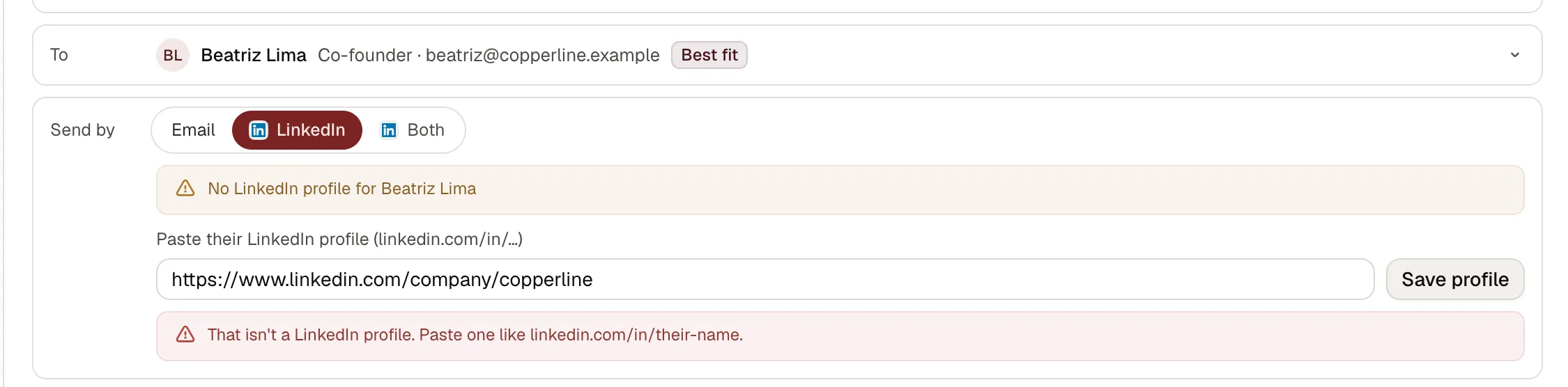
- Paste it into Paste their LinkedIn profile in the composer.
- Press Save profile. LinkedIn and Both now work for this person.
Step 4: Send
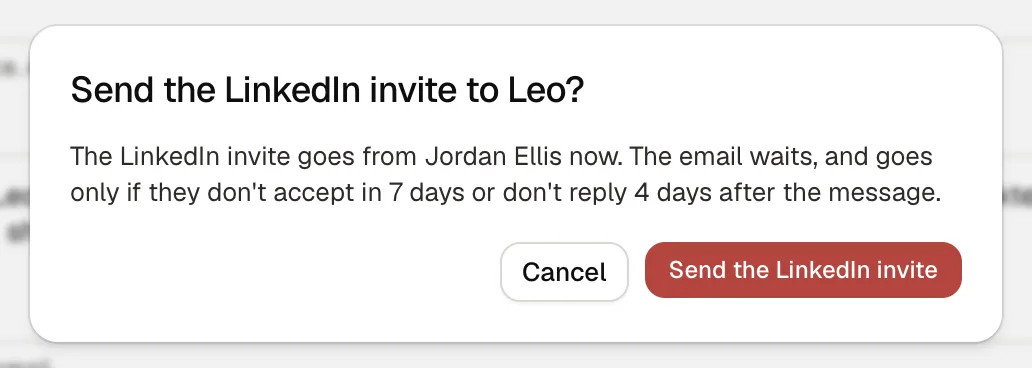
- On Review and send, press the send button. With LinkedIn first it reads Send the LinkedIn invite now.
- A short confirm opens. It says, in plain words, what goes now, from which sender, and when the email would follow.
- Press the confirm's button, for example Send the LinkedIn invite. Press Cancel to change anything first: nothing has gone yet.
What happens next, day by day
You do nothing from here. Proofsource runs every step and stops the moment the person replies, on either channel.
| When | What happens |
|---|---|
| Day 0 | Already connected: the message goes at once. Not connected: the invite goes with your short note. |
| When they accept | The message goes. |
| 3 days after the message | One follow-up, only if there is no reply. |
| 4 days after the message | With Both: still no reply, so the email goes. |
| 7 days, invite not accepted | An InMail goes if your sender has Sales Navigator or Recruiter. If not, with Both, the email goes. |
| When | What happens |
|---|---|
| Day 0 | The email goes, exactly as it does today. |
| The email bounces | The LinkedIn invite goes at once. |
| 4 days, no reply | The LinkedIn invite goes, then the same steps as above. |
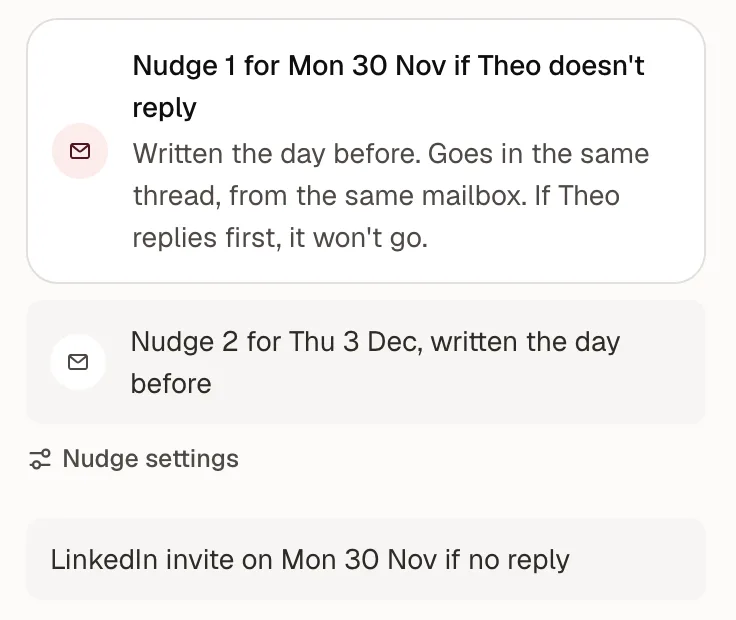
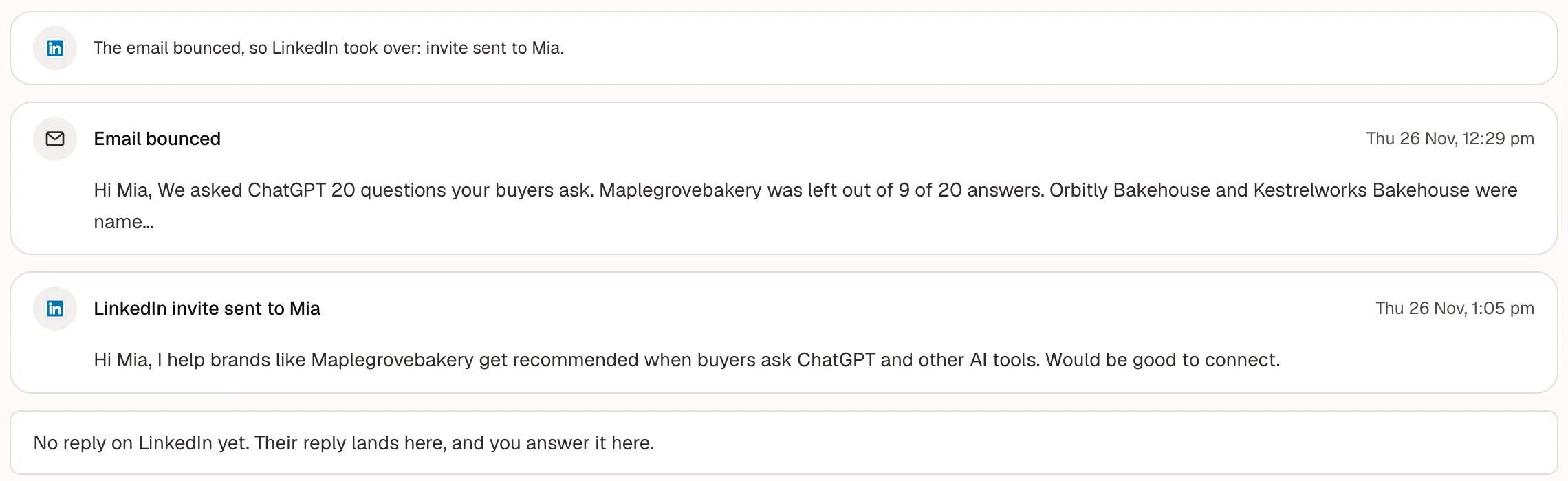
A reply on either channel stops both. Nobody gets a follow-up after they have answered you.
Step 5: Follow it on the pitch
Every step shows on the pitch with its date: invite sent, accepted, message, reply. An email-first pitch shows the date the LinkedIn invite will go, so you always know what is next.
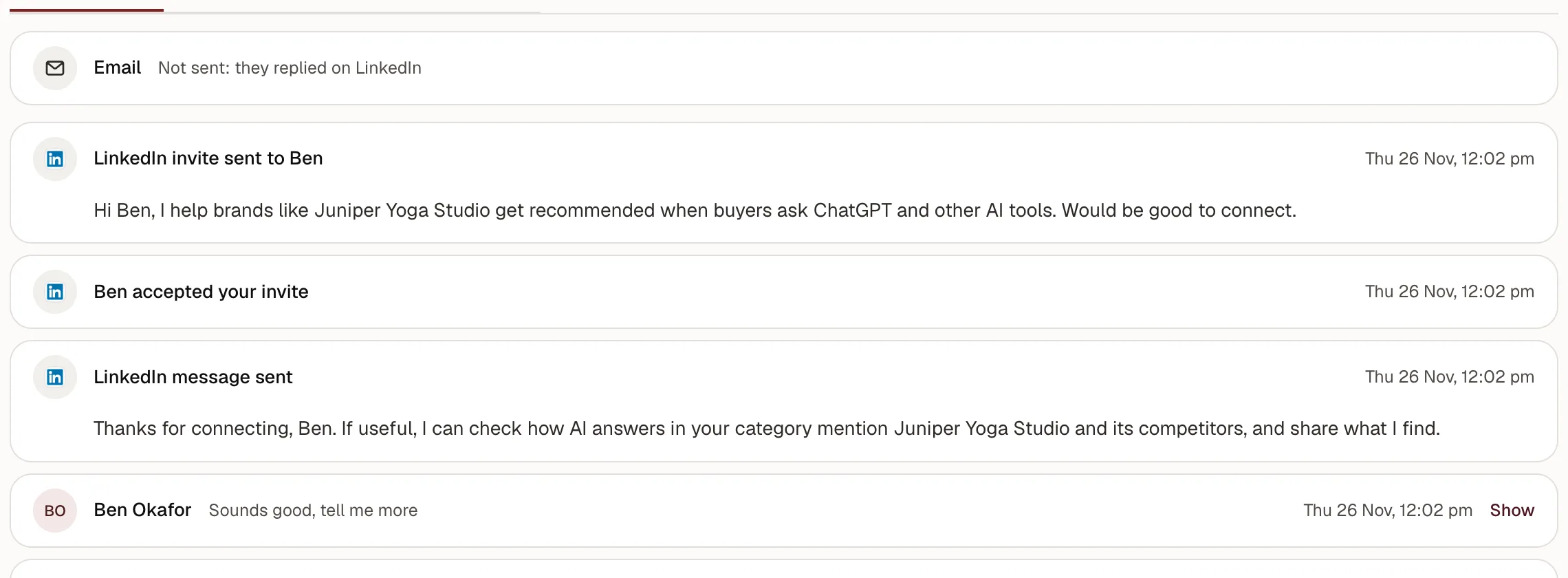
- Invited: the invite is out, waiting for them to accept.
- Connected: they accepted, so the message went.
- Replied: they answered. Everything else stops.
- Not accepted: 7 days passed without an accept, so the next step ran.
Step 6: Answer replies from Inbox
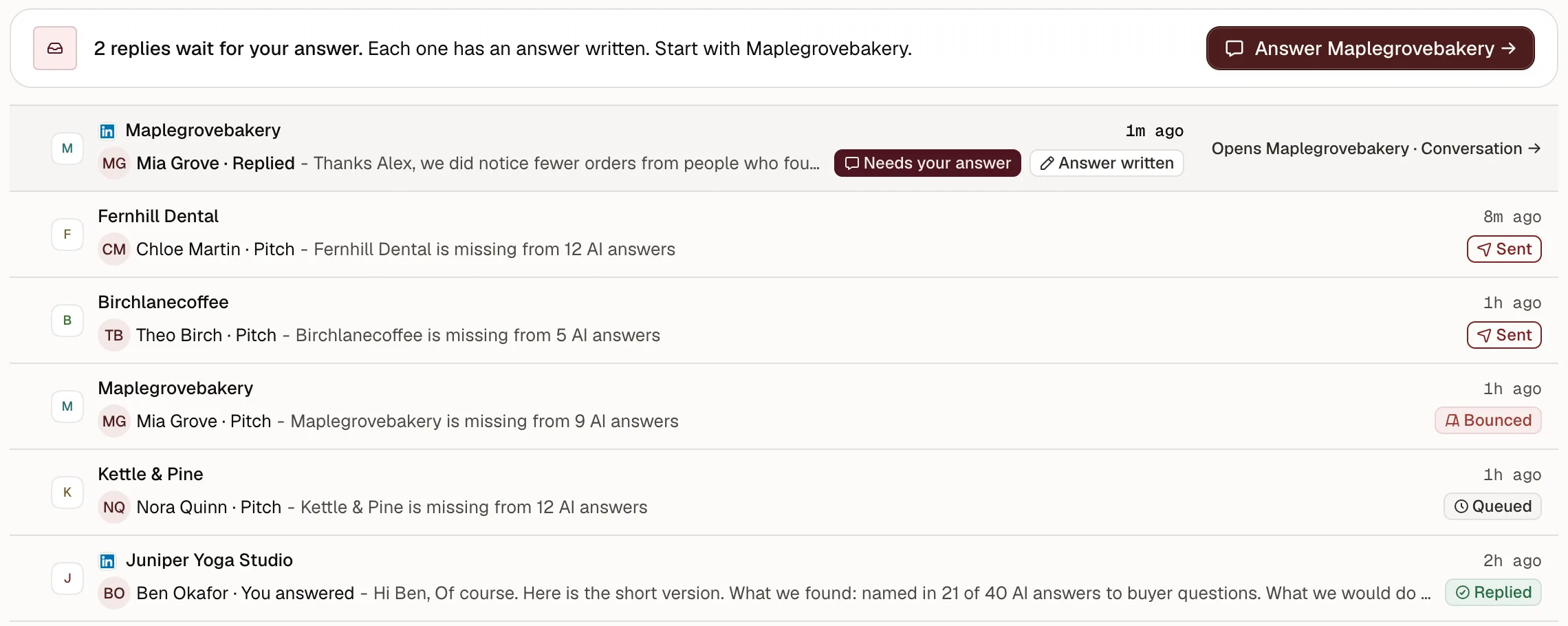
- Open Inbox. A LinkedIn reply shows with a small LinkedIn mark and Needs your answer.
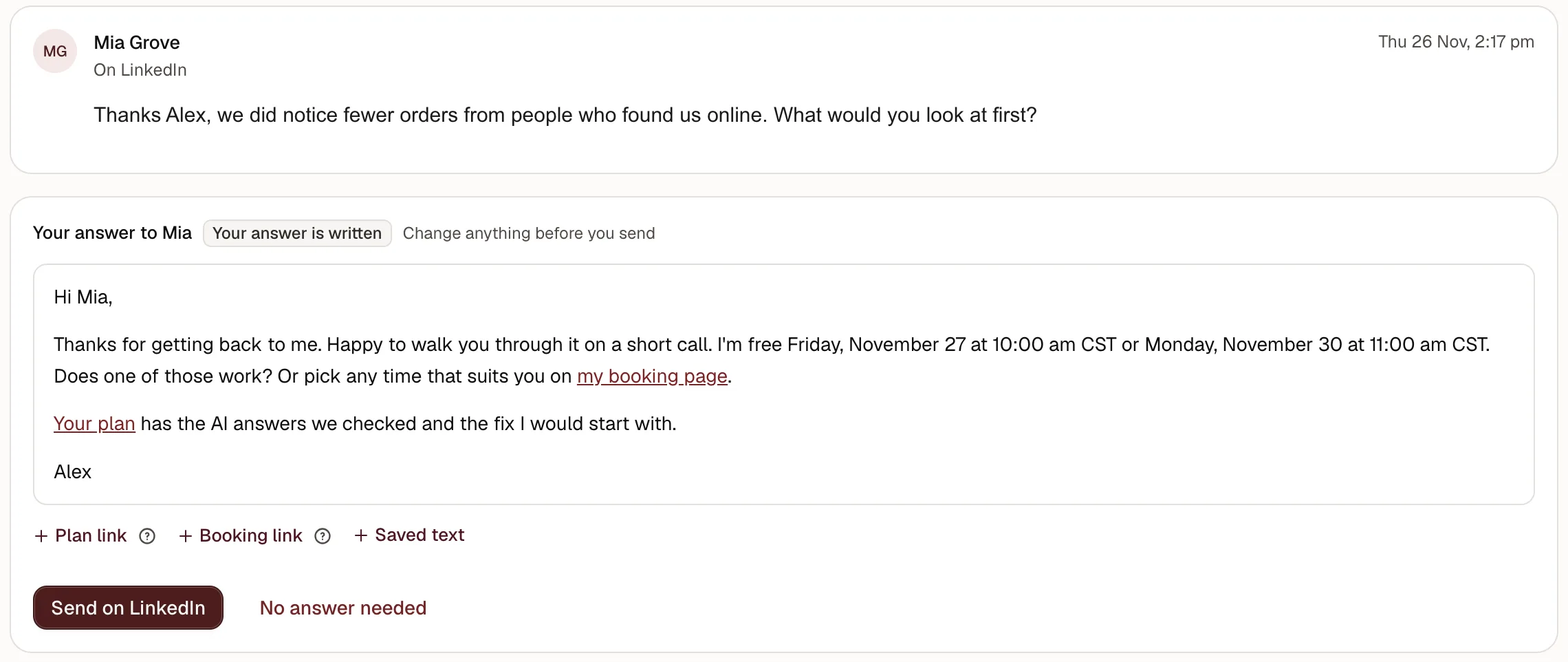
- Open it. Your answer is already written for you: read it and change anything you like.
- Press Send on LinkedIn. It goes on LinkedIn, from the same sender. Nothing to say? Press No answer needed.
If something looks wrong
| You see | Do this |
|---|---|
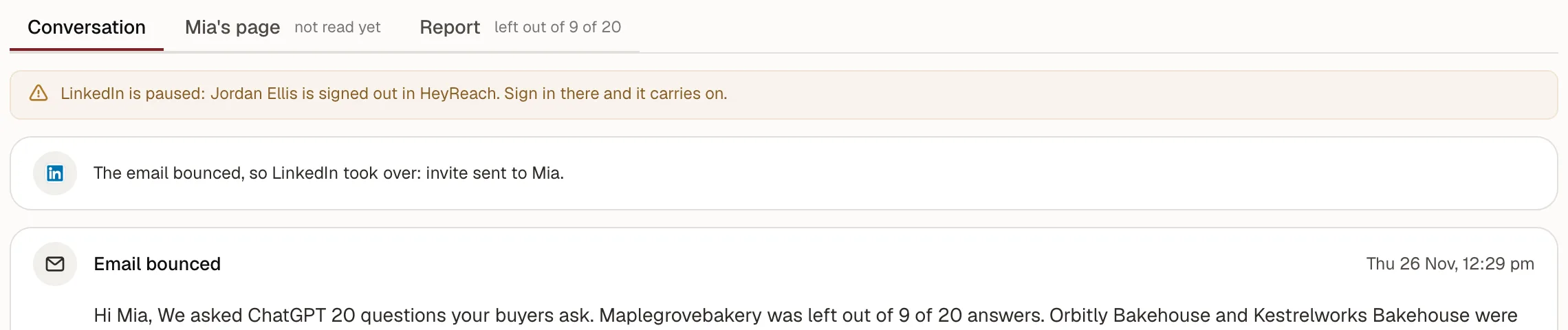
| LinkedIn is paused | Your sender is signed out in HeyReach. Sign in there and the pitch carries on by itself. With LinkedIn first, after 14 days the email goes instead. |
| No LinkedIn sender is active in HeyReach | Turn a sender on in HeyReach, or send this one by email. |
| No LinkedIn profile for this person | Paste their linkedin.com/in/... link in the composer and press Save profile. |
| That isn't a LinkedIn profile | Paste a profile link, not a company page or a post: linkedin.com/in/their-name. |
| The invite note is over LinkedIn's 300 characters | Shorten the invite note, then press Save LinkedIn lines. |
| No Send by row | HeyReach is not connected yet. Do Step 1. Email still works meanwhile. |
| Not enough credits for the LinkedIn lines | Type the three lines yourself. Invites and messages stay free. |